Teamwork on EZ Newswire Just Got Easier: Introducing Workspaces
Built with agencies in mind, every EZ Newswire account is now a Workspace. Invite teammates by email, assign each person their role, and control which organizations they can see, so you and your team can publish together instead of routing everything through one shared login.


Press releases are a team sport. To get them over the finish line, an account coordinator drafts, a colleague reviews, the announcing brand approves, and a manager submits. Agencies facilitate that process across dozens of clients at once. This proves cumbersome, however, when platform services they use are built around a singular login — a common default that forces coordination to happen outside the product through awkward workflows, which typically involve email threads, shared passwords, and the classic ask, "can you send that for me?"
Starting now, that changes. Built with agencies in mind, every EZ Newswire account is now a Workspace — a shared home for your team and every organization you publish for. Invite teammates by email, give each person their own login, scope them to the clients or brands they should see, and work together seamlessly.
If you've been sharing one login with your team, nothing about your releases or organizations is changing. You're just gaining the ability to add people.
Your account is now a Workspace
Think of a Workspace as the container for your team and every press release you submit. If you already have an EZ Newswire account, you've become the Admin of your own Workspace automatically. From here, you can invite the rest of your team.
You might be asking…
Can multiple people use one EZ Newswire account? Yes — with Workspaces, you invite teammates by email, assign each one a role, and control which organizations they can access, all without leaving your dashboard.
Can I remove a member when someone leaves the company? Yes — and it's exactly why release drafts and reports are bound to the organization, not the individual who created them. In these situations, Admins can suspend a contributor with one click. When that happens, the work they had accomplished up to that point stays put; everyone else with access to that organization still sees it. Similarly, if an Admin leaves, the platform prompts them to choose a new one in their Workspace, ensuring there's always someone to take the reins.
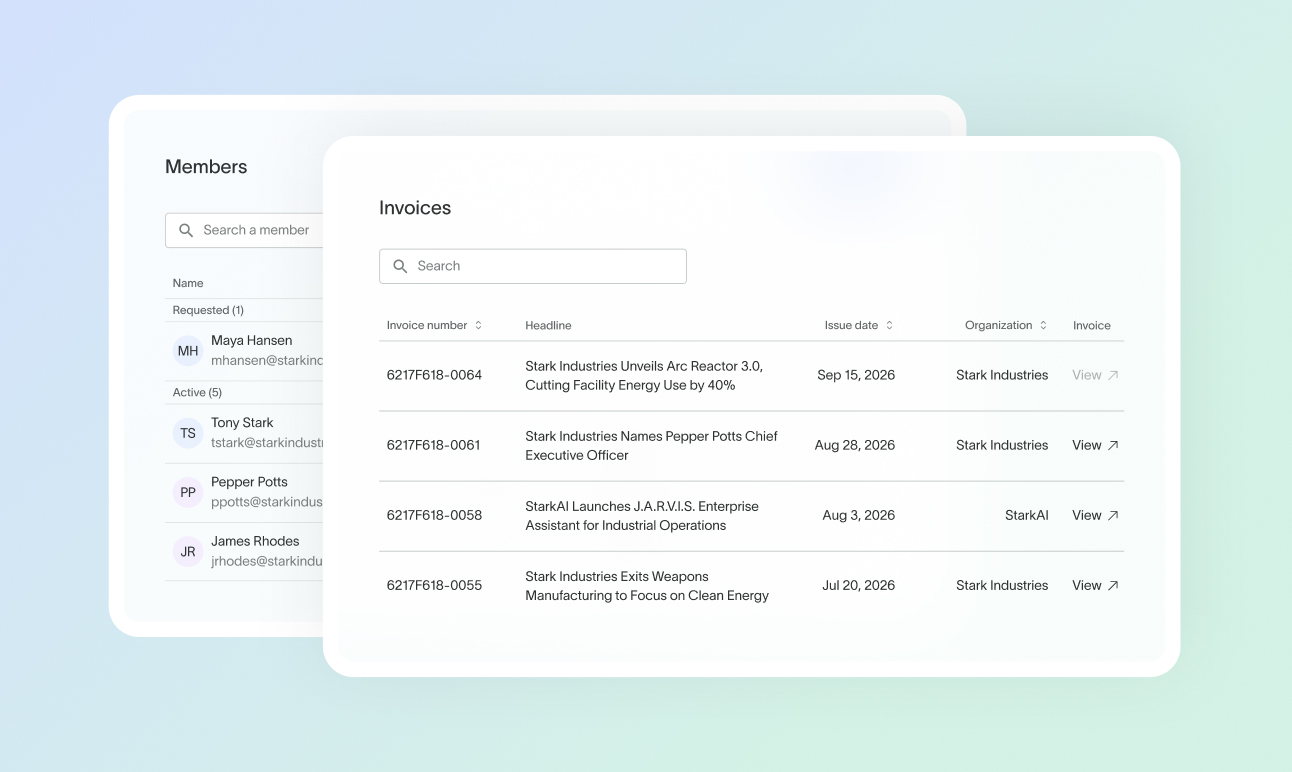
Can I pull invoices for just one client? Yes — invoice receipts for every organization are managed by Admins from a single billing tab. They are filterable by invoice number, release headline, or organization, so an agency can pull one client's charges in a couple of clicks instead of digging through a shared inbox.
Two roles, easy setup
Admins, in addition to drafting, publishing, and tracking press releases, manage the Workspace — invite members, grant organization access, monitor billing, edit general account settings — and maintain oversight over every organization, including ones added later.
Contributors can draft, checkout, and publish press releases, track performance analytics through reporting dashboards and performance reports, create new organizations, and manage the settings of the ones they have access to.
Admins decide who can access which organization, and Contributors see only the ones they've been granted. Each organization also has its own Members tab, so anyone with access can see at a glance who else is working in it.
That's the whole model. No matrix to configure, no roles to reverse-engineer — your team is productive on day one without working around the usual bottlenecks.
Invite team members in seconds
To invite team members as an Admin, click your account hub in the lower left and click Add team members. Alternatively, you can click the Invite team members button underneath. You’ll be brought to Workspace settings where you can enter an email, pick a role, assign their access to one or more organizations, and click Send invite. Your teammate gets a branded invite with a link that's valid for seven days — resend or cancel it anytime.
Your full member list — active, invited, and inactive — is searchable from the same page, so nothing gets lost as your team grows.
What each role can do
What Workspaces do for in-house teams
For a startup or an SMB with an internal comms or marketing team, a Workspace means each person works from the same organization, with visibility into what's been drafted, submitted, and published. Nothing has to be forwarded around by email to keep the team on the same page; Contributors see the same releases and the same reports; Admins see it all plus billing information in one place. And as the team grows and changes, adjusting access is just an invite or suspension away.
What Workspaces do for agencies
For an agency, a Workspace means every account manager and coordinator gets their own login, scoped to the clients they actually serve. Add a new client, and it's just another organization to grant team members access to. And with centralized in-platform billing, managing invoice receipts is made simple — regardless of the number of clients you manage today or take on next quarter.
What Workspaces do for enterprises
For a multi-brand enterprise, a Workspace means each sub-brand or region gets its own organization, and each Contributor works within their respective organization as opposed to every brand on the account. Everyone still works from the same Workspace, so Admin leadership maintains access to every organization’s press releases and corresponding billing. Adding a new brand or region later is just another organization to assign team members to, so the model holds as the company grows.
Wherever your team fits on that spectrum, everyone works under their own name, in exactly the organizations they should be in. Workspaces scale with your workload, not around it.
Live now
For teams that have been sharing one login, delays are all too common — a release stuck in limbo until whoever holds the password is free, an account manager waiting on approval from a team member to move it along, no clean way to ensure permissions. No part of that setup made the work more secure; it just made it slower.
Workspaces are live now. If you already have an account, you're already an Admin — go to Workspace settings › Members to invite your team. If you're new to EZ Newswire, sign up, create your Workspace, and invite your team during setup. Get in touch with our sales team to learn more or email us at hello@eznewswire.com.